

How to Use Tidal Health MyChart: A Complete Guide
If you’re navigating the world of digital healthcare, you’ve probably heard about patient portals—and if you’re a Tidal Health patient, MyChart is your gateway to managing your medical life from your couch. But let’s be honest: logging into a new healthcare portal can feel like learning a foreign language. Between appointment scheduling, prescription refills, and lab results, there’s a lot packed into these platforms.
Tidal Health MyChart isn’t just another app cluttering your phone. It’s a legitimate tool that puts your health information directly in your hands, allowing you to take a more active role in your care. Whether you’re checking test results, communicating with your doctors, or managing multiple family members’ health records, understanding how to use this platform efficiently can save you time and frustration.
This guide walks you through everything you need to know about Tidal Health MyChart—from initial setup to advanced features you might not even know existed. We’ll cover the essentials, tackle common questions, and help you become a MyChart power user in no time.
Getting Started with Tidal Health MyChart
Before you can access Tidal Health MyChart, you need to understand what you’re working with. MyChart is an electronic health record (EHR) portal developed by Epic Systems, one of the largest healthcare software companies in the United States. Tidal Health, which operates across Maryland and Delaware, uses this platform to give patients secure online access to their medical information.
The beauty of MyChart is that it’s standardized across many healthcare systems. If you’ve used it elsewhere, you’ll recognize the interface at Tidal Health. However, each health system customizes certain features, so your Tidal Health experience might differ slightly from other hospitals or clinics using the same platform.
Getting started is straightforward, but it requires a few important steps. You’ll need to be a registered patient at a Tidal Health facility, and you’ll need to activate your account through the official MyChart portal. This isn’t something you can do through a third-party app or an unofficial website—always go directly to Tidal Health’s official channels to protect your privacy and security.
Account Setup and Registration
Setting up your Tidal Health MyChart account is the first hurdle, but it’s not a difficult one. Here’s the process broken down into manageable steps:
Step 1: Locate Your Activation Code
When you register as a patient at a Tidal Health facility, you’ll receive an activation code. This might come via mail, email, or during your visit. Don’t lose this—it’s your key to unlocking MyChart. If you can’t find it, contact your healthcare provider’s office and request a new activation code.
Step 2: Visit the Official MyChart Portal
Head to the Tidal Health MyChart login page on their official website. Avoid clicking links from emails or third-party websites; instead, navigate directly through Tidal Health’s main website to ensure you’re on a secure, legitimate portal.
Step 3: Create Your Login Credentials
You’ll be prompted to enter your activation code and create a username and password. Choose a strong password—at least 8 characters with a mix of uppercase, lowercase, numbers, and special characters. Your digital health information is too valuable to protect with something like “password123.”
Step 4: Add Security Questions
MyChart will ask you to set up security questions for account recovery. Choose questions with answers only you would know. This adds an extra layer of protection if you ever forget your password.
Step 5: Enable Two-Factor Authentication
This optional but highly recommended step adds another security layer. You’ll receive a code via text or email each time you log in from an unrecognized device. It’s an extra step, but it’s worth the peace of mind.

Navigating Your Dashboard
Once you’ve logged in, you’ll land on your MyChart dashboard—essentially your command center for all things health-related. The dashboard is designed to give you quick access to the information you need most frequently.
Your dashboard typically displays several key sections. At the top, you’ll see your name and a quick snapshot of upcoming appointments. Below that, you’ll find cards or tiles representing different features: Messages, Test Results, Prescriptions, Appointments, and Care Summary. The exact layout may vary depending on updates to the platform, but the core elements remain consistent.
On the left side, you’ll usually find a navigation menu with options to access different sections of your account. This is your roadmap for exploring MyChart’s deeper features. The search function at the top of the page is also invaluable when you’re looking for something specific.
If you’re managing health records for family members, you’ll notice a way to switch between accounts. This is particularly useful for parents managing children’s records or adult children managing aging parents’ information. The system keeps everything separate and secure while allowing authorized users to access multiple accounts.
Key Features Explained
Tidal Health MyChart offers more than just appointment scheduling. Let’s break down the major features you should be aware of:
- Medical Records: Access your complete medical history, including past diagnoses, surgeries, and treatments. This comprehensive view helps you understand your health trajectory and is invaluable when consulting with new providers.
- Immunization Records: View your vaccination history in one place. This is particularly useful when you need proof of vaccinations for travel or employment.
- Allergy and Medication Information: Your portal maintains an up-to-date list of known allergies and current medications. Make sure this information is accurate, as it affects your care.
- Problem List: This is your ongoing list of diagnosed conditions. It helps providers quickly understand your medical background during appointments.
- Care Plans: If your provider has created a care plan for managing a chronic condition, you can view it here and track your progress.
These features work together to create a comprehensive view of your health. Rather than piecing together information from multiple sources, everything you need is in one secure location.
Managing Appointments
One of the most practical uses of Tidal Health MyChart is appointment management. You can view upcoming appointments, reschedule existing ones, and in some cases, request new appointments directly through the portal.
Viewing Your Appointments
Your dashboard displays upcoming appointments prominently. Click on any appointment to see details like the date, time, location, provider name, and appointment type. Some appointments include additional information like parking instructions or pre-visit instructions.
Rescheduling Appointments
Need to move an appointment? MyChart often allows you to reschedule directly through the portal if you’re doing so within a certain timeframe (usually at least 24 hours before the appointment). Click the appointment and look for a “Reschedule” option. You’ll see available time slots and can select a new time that works better for your schedule.
Requesting New Appointments
Depending on your Tidal Health facility’s settings, you might be able to request new appointments through MyChart. Navigate to the Appointments section and look for a “Request Appointment” button. Fill out the form with your preferred dates, times, and reason for the visit. Your provider’s office will review the request and confirm availability.
Appointment Reminders
Enable notifications in your MyChart settings to receive appointment reminders via text, email, or both. This simple feature prevents the common mishap of forgetting an appointment altogether.
Tracking Medications and Prescriptions
Your medication list in Tidal Health MyChart is more than just a reference—it’s a critical component of your healthcare safety. This is where you can refill prescriptions, review medication history, and ensure your provider has accurate information about what you’re taking.
Viewing Your Current Medications
The Medications section lists everything your providers have prescribed. You’ll see the medication name, dosage, frequency, and the prescribing provider. This is your chance to verify that the information is correct. If something looks off—perhaps a medication you no longer take or an incorrect dosage—contact your provider immediately.
Requesting Prescription Refills
When you’re running low on a regular medication, you can request a refill directly through MyChart instead of calling your pharmacy or provider’s office. Navigate to the medication you need refilled and select “Request Refill.” Your provider will receive the request and either approve it or contact you if there are any concerns. The pharmacy you’ve selected will then process the refill.
Understanding Prescription Status
MyChart shows you the status of each prescription. You might see statuses like “Active,” “Discontinued,” “Pending,” or “Expired.” Understanding these statuses helps you know which medications are currently prescribed and which have been stopped by your provider.
Comparing with Your Pharmacy Records
Your MyChart medication list should match what your pharmacy has on file. If there’s a discrepancy, this is important information for your provider. Sometimes medications get added or removed, and it’s good to catch these inconsistencies early.
Accessing Your Test Results
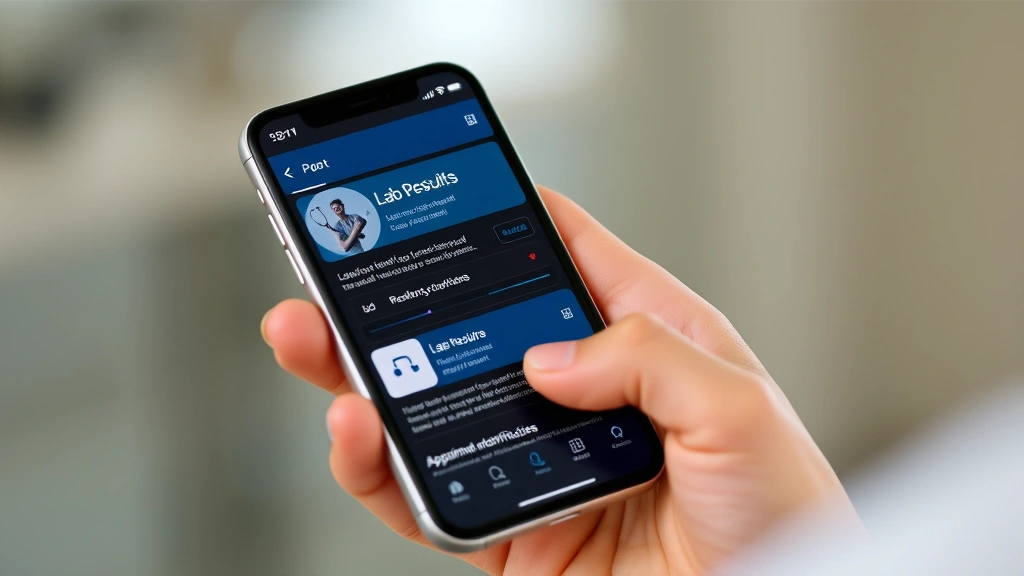
One of the most valuable features of Tidal Health MyChart is the ability to access test results as soon as they’re available. No more waiting for a phone call or wondering when results will be ready.
Lab Results
When you have blood work or other laboratory tests done at a Tidal Health facility, the results appear in your MyChart portal. You’ll see the test name, date, and results with reference ranges. If a result is abnormal, it’s usually flagged so you notice it immediately. However, don’t panic if you see a result before your provider has reviewed it—they’ll typically contact you if action is needed.
Imaging Results
Results from X-rays, ultrasounds, CT scans, and MRIs appear in MyChart as well. You can view the radiologist’s interpretation of the images. Some facilities also provide access to the actual images through a secure viewer, though this varies by location.
Pathology Results
If you’ve had a biopsy or other tissue analysis, the pathology report will be available in your portal. These reports can be technical, so don’t hesitate to ask your provider to explain any terminology you don’t understand.
Understanding Your Results
While having access to results is empowering, remember that these are medical documents designed for healthcare professionals. If you see something concerning or don’t understand a result, reach out to your provider. They can provide context and explain what the results mean for your health. This is particularly important for abnormal results—your provider may have already identified this and has a plan in place.
Secure Messaging with Providers
Tidal Health MyChart includes a secure messaging feature that lets you communicate directly with your healthcare providers without picking up the phone. This is incredibly useful for non-urgent questions, follow-up concerns, or general healthcare inquiries.
Starting a Message
Look for the Messages section in your MyChart dashboard. You can send a new message to your primary care provider, specialists, or your provider’s office staff. Select the recipient, compose your message, and send it. The message is encrypted and secure—only the intended recipient can view it.
Response Times
Keep in mind that providers typically respond to messages within 24-48 business hours. This isn’t the appropriate channel for emergencies—if you’re experiencing chest pain, severe difficulty breathing, or other acute symptoms, call 911 or go to the emergency room immediately. For urgent but non-emergency issues, call your provider’s office directly.
Message Best Practices
Be clear and concise in your messages. Include relevant details like when symptoms started, what you’ve already tried, or specific questions you have. Avoid sending sensitive information that you wouldn’t want transmitted electronically, though MyChart’s encryption provides substantial protection.
Keeping Message History
All messages are stored in your MyChart account, creating a written record of your communications with your healthcare team. This can be helpful for reference later or if you need to escalate a concern.
Security and Privacy Considerations
Your health information is some of the most sensitive data you possess. Understanding how to protect it while using Tidal Health MyChart is crucial. When considering digital health platforms, it’s important to understand the broader context of healthcare privacy regulations and protections.
HIPAA Protection
Tidal Health MyChart is covered under HIPAA (Health Insurance Portability and Accountability Act), which provides legal protection for your health information. This means your data is protected both in transit and at rest, and there are strict penalties for unauthorized access or disclosure.
Password Security
Your password is your first line of defense. Make it strong and unique—don’t use the same password across multiple accounts. Change your password periodically, and if you suspect your account has been compromised, change it immediately and contact Tidal Health’s support team.
Device Security
The device you use to access MyChart matters. Avoid accessing your health information on public Wi-Fi networks or shared computers. If you must use public Wi-Fi, consider using a VPN to encrypt your connection. On your personal device, keep your operating system and apps updated, and use a strong lock screen password or biometric authentication.
Sharing Access Safely
If you need to allow someone else to access your MyChart account (like a family member or caregiver), do so through MyChart’s official sharing features rather than simply giving them your password. This allows you to control exactly what they can see and access. If you’re managing records for a minor child, understand your responsibilities regarding their privacy as they age.
Privacy Settings Review
Regularly review your privacy settings in MyChart. Check who has access to your account, what information is being shared, and adjust these settings as needed. If you’ve authorized someone to access your records and that arrangement has changed, revoke their access promptly.
If you’re exploring other health systems’ patient portals, similar security principles apply. For instance, understanding how to navigate Texas Health MyChart or Novant Health MyChart follows the same security best practices.
Troubleshooting Common Issues
Forgotten Password
If you can’t remember your MyChart password, look for the “Forgot Password” link on the login page. You’ll be prompted to answer your security questions or receive a password reset link via email. Follow the prompts to create a new password.
Account Lockout
After multiple failed login attempts, MyChart may temporarily lock your account for security reasons. Wait a few minutes and try again, or use the password reset feature. If you continue having trouble, contact Tidal Health’s patient portal support team.
Missing Information
If you’re expecting to see test results, appointment confirmations, or other information that isn’t appearing, give the system time to update. Sometimes there’s a delay between when information is processed and when it appears in the patient portal. If it’s been several hours or longer, contact your provider’s office to confirm the information has been sent to MyChart.
Technical Glitches
Occasionally, you might experience loading errors or other technical issues. Try clearing your browser cache and cookies, then logging back in. If you’re using the MyChart app, try uninstalling and reinstalling it. If problems persist, contact Tidal Health’s technical support.
Can’t Find a Feature
MyChart updates periodically, and features may be in different locations than you remember. Use the search function to locate specific information. You can also contact your provider’s office—they may be able to point you toward the feature you’re looking for or provide alternative ways to access the information.
If you’re comparing multiple health systems’ portals, you might encounter similar issues across platforms. Whether you’re using Spectrum Health MyChart or Solution Health MyChart, troubleshooting approaches are often transferable.
For those managing healthcare access more broadly, understanding Harris Health login procedures and similar portal access can help you navigate multiple health systems efficiently.
Frequently Asked Questions
Can I access Tidal Health MyChart from my phone?
Yes. Tidal Health offers a mobile app available on iOS and Android, or you can access MyChart through your phone’s web browser. The mobile app is often more convenient for checking appointments and messages on the go.
Is my information secure in MyChart?
Yes. MyChart uses encryption and security protocols compliant with HIPAA regulations. However, you play a role in security too—use a strong password, enable two-factor authentication, and avoid accessing the portal on public Wi-Fi networks.
How long does it take for test results to appear in MyChart?
This varies depending on the type of test. Simple blood work might appear within hours, while more complex tests like biopsies can take several days. Your provider’s office can tell you what to expect for specific tests.
Can I request prescription refills through MyChart?
Yes, most prescriptions can be refilled through MyChart. Simply locate the medication and select “Request Refill.” Your provider will review and approve it, and your pharmacy will process it.
What should I do if I see an error in my medical records?
Contact your provider’s office immediately. Errors in medical records can affect your care, so it’s important to correct them promptly. Document what the error is and what the correct information should be.
Can I share my MyChart access with a family member?
Yes. MyChart has built-in sharing features that allow you to grant access to family members or caregivers. You can control what information they can see and access.
What if I can’t log in to MyChart?
First, try resetting your password using the “Forgot Password” link. If that doesn’t work, try clearing your browser cache or using a different browser. If you continue having trouble, contact Tidal Health’s patient portal support team.
Is messaging with my provider through MyChart confidential?
Yes. Messages are encrypted and secure, similar to your overall MyChart account. However, remember that this isn’t a private conversation—your provider may share relevant information with other members of your healthcare team as part of your care.
Can I view my medical records from outside Tidal Health facilities?
MyChart contains records from Tidal Health facilities. Records from other healthcare providers may not be available unless they’ve been transferred to your Tidal Health account. You can request records from other providers and ask for them to be shared with Tidal Health.
What happens if I forget to renew a prescription through MyChart?
If your prescription runs out and you haven’t requested a refill, you won’t be able to get more medication without contacting your provider’s office directly. To avoid this, request refills a few days before you run out of medication.